Bridge manual — working with the AI: what happens in the background, and eight workflows from day start to legal research.
Basics
1. AI chat and bridge — what is the difference?
IRONSTICK gives you two ways to work on your files with an AI.
The AI chat is built into the program: you type in an IRONSTICK window, and IRONSTICK itself sends the request to an external AI service, using the API keys your firm has stored in the AI configuration.
The bridge works the other way round: you type in the desktop AI app you already use, and that app calls the IRONSTICK tools live through a connector.
In both cases the AI reaches your data only through IRONSTICK, through the same tools and behind the same gates.
The built-in AI chat
A local layer first. Every message first passes a rule-based layer that runs on your computer, with no AI model and no internet. Simple requests — opening a screen, a client or a case, simple look-ups — are carried out there directly. Everything that needs reasoning or writing goes on to an external AI service.
Your keys, your services. The chat uses the external AI services for which an API key is stored in the AI configuration. They are used automatically in a fixed order. If one is unavailable or out of credit, the next one takes over the same request.
Consent first. Before the chat sends anything to an external AI service, it asks you. If you decline, nothing is sent, and the chat does not ask again until you switch the mode or open the chat anew.
Pseudonymised. Before a request leaves your computer, names of persons and companies, case and court file numbers, personal identification numbers, IBANs, phone numbers, e-mail addresses and party addresses are replaced by neutral placeholders. The answer is translated back on your computer. Dates and amounts stay unchanged. The placeholders are built from your own records; in addition, numbers, e-mail addresses and phone numbers in free text are recognised.
Logged. Every call to an external AI service is logged locally, in the placeholder form in which it left your computer.
Compact working memory. Each turn hands the AI the recent part of the conversation (about the last 6,000 characters) and a short summary of the earlier part. One request runs up to eight tool rounds.
Where it runs. On Windows and on the Android tablet.
The bridge
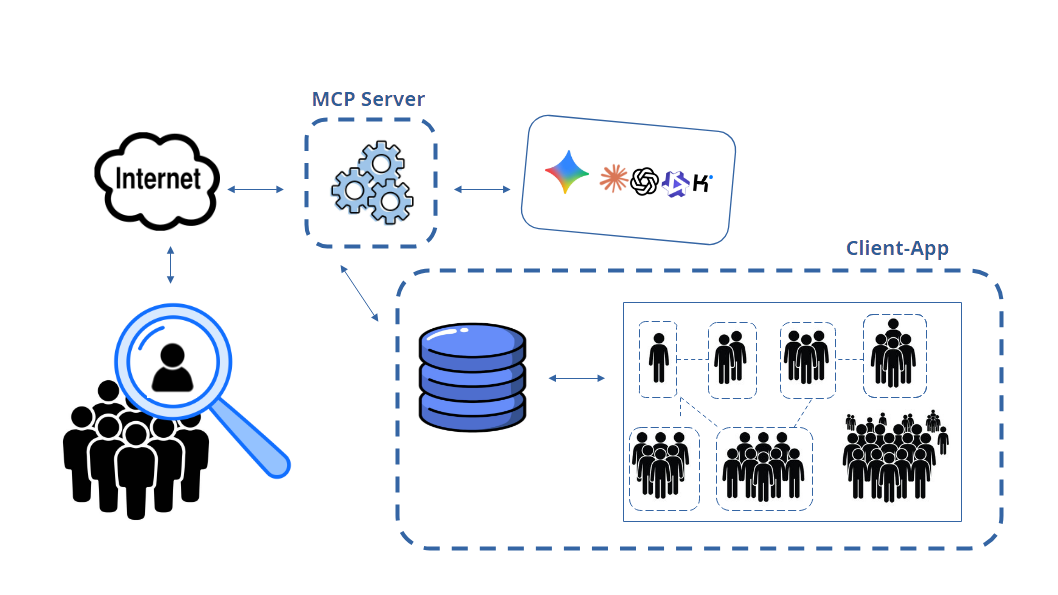
Three parts. Your desktop AI app connects through the Model Context Protocol (MCP) to a small bridge program on the same computer. The bridge forwards each call to the running IRONSTICK app over a protected connection that is reachable only from this computer. The app executes the tool and sends the result back the same way.
The bridge program knows no data. It opens no database and contains no tools of its own; it only passes calls through. The working instructions for the AI also come from the running app when the desktop AI connects.
Only while IRONSTICK runs. If the app is closed, every tool call is answered with the notice that IRONSTICK is not running and that you should start it. The list of tools stays visible in the desktop AI, so the order in which you start the two programs does not matter.
Real data. Tool results reach the desktop AI unpseudonymised — real names, numbers and dates are what make a submission-ready template possible. What the AI reads is processed under your own account with the provider of the desktop AI app, on that provider's terms.
Switched on by you. The bridge works only when Allow connector access from local desktop AI is switched on in the AI configuration and the bridge for that desktop AI app is licensed. Program control — opening screens, cases and documents, exporting — needs a second switch.
Several at once. The licensed desktop AI apps — Claude Desktop, ChatGPT Desktop, Qwen Desktop and Kimi Desktop — can be connected at the same time and work on the same case. Each one is shown with its own symbol in the menu bar while it works.
Where it runs. On Windows.
Side by side
AI chat (built in)
Bridge (desktop AI app)
Where you type
In the IRONSTICK chat window
In your desktop AI app
Who talks to the AI service
IRONSTICK, with your own API keys
Your desktop AI app, with your own account
Costs of the AI
Billed per use by the AI service on your API key
Covered by the subscription you already hold for the desktop AI app
IRONSTICK licence
Included, no extra licence
Bridge licence per user / workstation — one bridge per desktop AI app, or the bundle of all bridges
Data sent to the AI
Pseudonymised; dates and amounts unchanged
Real data, processed under your account with the provider
Your consent
Before the first external request of a chat session
Before the first data access by any desktop AI in each program run
Working instructions
Sent along with every request
The AI must read them and confirm a rule word for word before any tool opens
Tools and gates
The same tool set and the same gates, plus a search in the chat's own history
The same tool set and the same gates; program control only with its switch
Length of a working session
Recent conversation plus a short summary; up to eight tool rounds per request
The conversation of the desktop AI app
Platforms
Windows and Android tablet
Windows
Why the bridge suits extensive case work
No per-call cost through IRONSTICK. Reading whole case files, working through hundreds of documents and drafting in several rounds all run on the subscription you already pay for the desktop AI app. The same work through the built-in chat is billed per use on your API key, which adds up quickly on large files.
Longer working sessions. The desktop AI keeps its own continuous conversation — ideal for long working sessions on large case files.
Bigger answers per call. Claude Desktop and ChatGPT Desktop receive tool answers of up to 40,000 characters directly; Qwen Desktop, Kimi Desktop and the built-in chat receive up to 10,000. Anything larger goes, complete, into the encrypted scratch store and is read from there part by part.
The full toolset, the full text. The desktop AI works with the complete tool set and reads full texts in its own conversation, behind the same gates as the chat.
The chat keeps its place. The built-in chat needs no extra licence, is always at hand — also on the tablet — and is the more tightly controlled channel: pseudonymised, asked for consent and logged.
2. One set of tools — inside the Client App
Every operation an AI can carry out lives in the IRONSTICK Client App on your computer — not in the AI, and not in the bridge program.
The AI chat and every connected desktop AI call the very same tools. Each call is executed by the running app against your live database, and only the result goes back to the AI.
One tool registry. The tool set is built by one and the same module for the AI chat and for the bridge: the same tools, in the same order, behind the same gates. The tools are grouped into toolsets by topic — case, evidence, deadlines, laws, letters and e-mails and more — which the AI opens as it needs them.
One way through. Every tool call, from the chat or from a desktop AI, passes through the same control layer: the activity symbol in the menu bar, the identification of the caller, the gates, and the hand-over of large results to the scratch store. Each desktop AI and each API service keeps its own record of what it has read, so the reading of one never counts for another.
The data stays in IRONSTICK. Your file remains in the IRONSTICK database on your computer. An AI receives only what a tool returns for the call it makes; IRONSTICK hands it neither the database nor the data folder.
Live on every call. The tools open the database on every call. A change you save is what the next tool call sees.
Runs in the background. The tools run in the background inside the app, so the program stays responsive even during long reads of large case files.
The app must be running. Without the running app there are no tools: the bridge program only passes calls through and answers that IRONSTICK is not running.
The app must be unlocked. Until the six-digit security code has been entered on the start screen, every tool call of a desktop AI is answered with the notice that the application is locked, and no data is returned. Enter the code in IRONSTICK, then repeat the request.
Access is granted by you. The bridge serves a desktop AI only when the connector switch is on and that desktop AI is licensed. The first data access by any desktop AI after each program start opens one confirmation dialog. If you approve, access is open for all licensed desktop AIs for the rest of the program run. If you decline, every call of every desktop AI is refused for 10 minutes, and the next access after that asks you again. This decision is not saved.
3. The gates — what happens in the background
Between the AI and your records sit gates built into the tool layer of the Client App. They are plain program logic — no AI checks another AI.
When a gate refuses a call, nothing is written or delivered; the AI receives a message naming what is missing and the call that opens the gate.
Most gates work the same for the AI chat and for every desktop AI; the last column shows where each one applies.
Gate
When it triggers
What it does
Applies to
Consent before external AI
The first time in a chat session that a request has to go to an external AI service
A dialog asks whether the external AI may be used. If you decline, nothing is sent, and the chat does not ask again in that session.
AI chat
Pseudonymisation
Every request of the AI chat to an external AI service
Names, companies, case and court file numbers, identification numbers, IBANs, phone numbers, e-mail addresses and party addresses leave as placeholders and are translated back on your computer. Dates and amounts stay unchanged. If the placeholder list cannot be built completely, the request is not sent.
AI chat
Data-access consent
The first tool call by any desktop AI after program start
One confirmation dialog appears for all desktop AIs. Approved: open for the rest of the program run. Declined: every call is refused for 10 minutes, then you are asked again.
Bridge
Start-up lock
Every tool call while the six-digit security code has not been entered
The call is answered with the notice that the application is locked; no data is returned.
Bridge
Instruction lock
Every tool call of a desktop AI
All tools except reading the instructions, confirming them and asking for the system language stay closed until the AI has read the instructions and returned the rule against invented facts word for word. The confirmation lapses 60 minutes after it was given, after 2 hours without a call, at midnight, on every new connection and, where IRONSTICK can see the conversation record, when the desktop AI condenses its conversation; then the AI must read again and return a randomly chosen rule word for word. In the AI chat the instructions are sent along with every request instead.
Bridge
Date gate
Tools that write dated content — chronicle, calendar, daily notes, daily log, memory, statute reports and others
The call is refused unless the AI fetched the real current date and time within the last 30 minutes.
Both
Read the case first
Tools that read case content (chronicle, timeline, searches, full texts and more) and tools that write on a case (notes, chronicle entries, pleading check, export, hand-over to another AI)
Tools that read the content of a case are refused until the AI has read that case's digest. A note or chronicle entry also needs the case profile, the jurisdiction and the newest chronicle entries. A pleading check, export or hand-over also needs the newest documents of the case read in full. The refusal lists what is still unread.
Both
Write only from what was read
Memory entries, changes to a snake, work on drafts, the pleading check and delivery on a case
A memory entry for a case is accepted only when the digest has been read and every document cited in it has been read completely in this session. Every search result in a scratch file carries the notice that search hits are not reading, with the documents behind the hits that are still unread. Once the AI has opened a document of the opposing party or of an authority in a case, nothing more is written on that case until that document has been read completely.
Both
Nucleu first
Writing, checking and delivering a pleading
Refused until every current nucleu of the case — the case nucleu and the nucleu of each matter the case belongs to — has been read in its current version. The last round of the pleading check compares the document with the nucleu.
Both
Snake gate
In the pleading check, just before the nucleu round, when the case or another case of its matters has a snake
The AI must ask you whether to run the snake round and continues only after your answer — or at once, if you asked for it when you gave the order. If you say yes, every snake entry has to be settled as adopted, rejected or not relevant, with a reason.
Both
Legal library first
A web search or web page request that concerns a statute (article or paragraph numbers, code names, law numbers, law portals)
Refused until the AI has searched your legal library for that norm. If the library has it, the web stays closed for that norm and the AI cites from the library. Only when the library has no match is the web opened for that norm, for 15 minutes.
Both
Report statute sources — opened, not snippets
A statute-related web search or an opened law-portal page that yields a statute source, and every report of a new statute source
Every further tool answer starts with the reminder to report the source, until it is reported (for up to 15 minutes). A report is accepted only for a page the AI has itself opened with the IRONSTICK page tool within the last 24 hours. Reported sources wait in one consent dialog: ticked sources are fetched, checked and stored in the library, unticked ones are declined.
Both
Memory only with your approval
The AI stores, changes or deletes a memory entry
A dialog shows you the entry. It is stored, changed or deleted only when you allow it; declined entries are discarded. While the dialog is open, every other call of that session is refused. Apart from hand-over tasks between AIs and your own notes, the AI reads only the memory entries you have approved.
Both
Proposals instead of writes
The AI wants to change master data, add a person or institution, add a relation, fill a person analysis, merge duplicates or delete a record
The tool writes nothing into your records. It places a proposal in the Data Consistency Monitor, where you accept or reject it.
Both
Secret documents left out
Every AI tool that reads documents, media, deadlines or a whole case, and the background services that use external AI (Data Consistency Monitor, situation report)
Entries marked secret are filtered out of every AI tool and service and are not passed to the AI.
Both
Prospects only from the court file
The AI case assessment, started in the app or by a desktop AI
The estimate of the prospects of success is based only on the case profile and the documents of the case that went to or came from the court or authority addressed in the initiating document — from both sides, without annexes. Without an initiating document or a recognised court or authority, the prospects are marked as not estimable and the gauge stays empty.
Both
Check before delivery
Delivery of a formal document such as a pleading
Delivery is refused without a fresh positive result of the deterministic pleading check for exactly this state of the file; every edit voids it. What leaves the system is a submission-ready template for you to review and sign.
Both
Workflows
Workflow 1 — Starting the day
Starting the day answers three questions before you begin: what is due, what has come in, and where you left off.
One step produces the start-of-session summary with the date, reminders, deadlines and appointments of the next three days and open tasks. After that the AI fetches the complete deadline list, today's appointments and what was captured today or yesterday.
Use it every morning, and whenever you start a new conversation with a desktop AI.
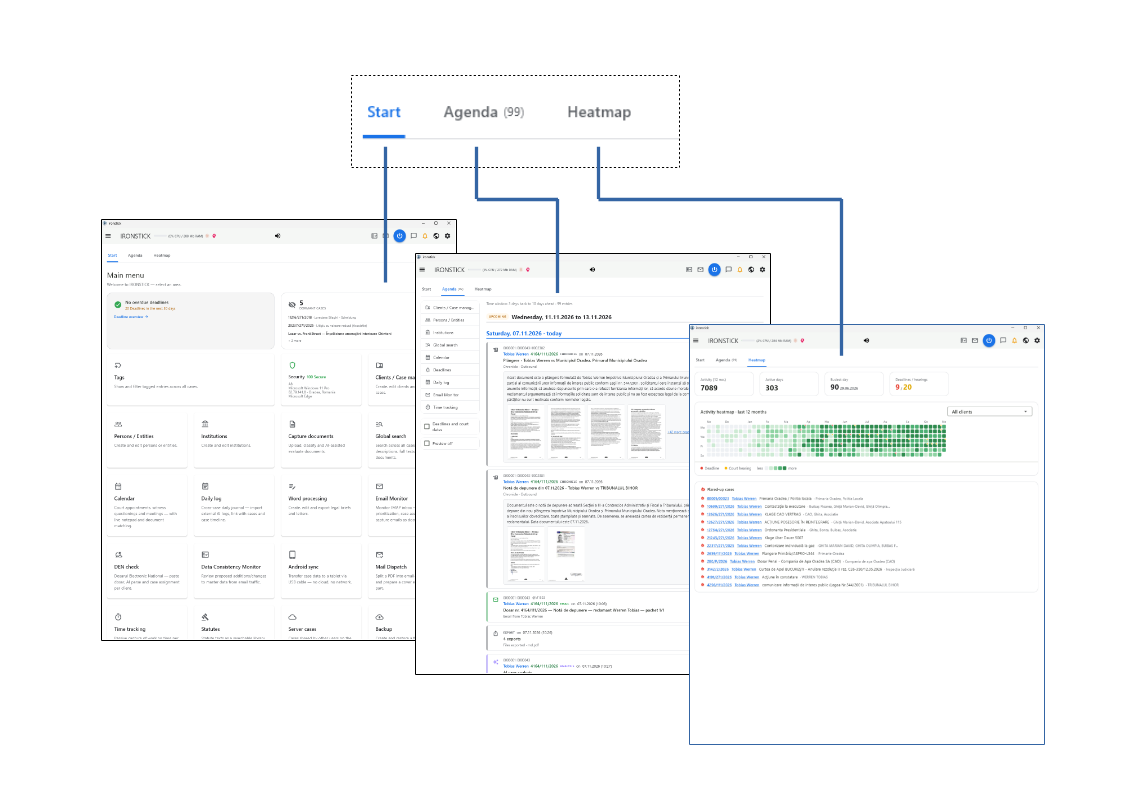
Start, agenda and heatmap: the day's deadlines, appointments and new entries at a glance.
Step 0 — set the context
Start and unlock IRONSTICK. The tools work only while the app is running and after the six-digit security code has been entered.
Your own briefing in the app. On Windows, the first start of the day asks whether IRONSTICK should brief you on the day. If you say yes, the briefing is shown with clickable rows that lead to the deadlines, the calendar, the mailbox, the documents and the case, and it is also read aloud.
Desktop AI: a new conversation. Start a new conversation in your desktop AI app. Approve the data-access dialog that IRONSTICK shows on the first access by any desktop AI after program start.
AI chat. Open the AI chat in IRONSTICK; the working instructions are sent along with every request.
No case needed. The start of the day covers all clients and cases. Open a case only when your question is about that case.
What you say — step by step
Start the session.
The AI reads and confirms its instructions, fixes today's date and loads the start-of-session summary: reminders, deadlines and appointments of the next three days, open tasks.
What is due today and in the next three days?
You get deadlines, court hearings and appointments in date order, each with its case.
What has come in since yesterday?
New e-mails and newly captured documents, each with the case it was assigned to.
Read the new e-mail in case [case number] and tell me what it asks of me.
The full text is read first; you get the content, the open points and a suggestion for the next step.
Write today's phone call with [person] about [subject] into the daily log.
The entry is added to today's daily log with date and time.
What happens in the background
Gates before the first tool. Until the security code is entered, every tool call of a desktop AI is answered with the notice that the application is locked. The first data access by any desktop AI after program start opens the consent dialog; approved, access stays open for all desktop AIs for the rest of the program run. Before any other tool opens, the desktop AI must read the working instructions and return a rule word for word.
Session start in one step. Through the bridge, opening the session-start toolset produces the start-of-session summary. Date and time, the system language and the screen you have open come back at once; the complete summary is placed in the encrypted scratch store, where the AI reads it.
What the summary contains. Due memory reminders (today and overdue), which the AI handles first; for which clients the shared AI memory holds knowledge; the one date anchor; the system language, which is the conversation language; the current screen; the list of the last ten daily logs; deadlines and appointments due within three days, at most ten lines each; open tasks left by another AI. Each section is capped, and a capped section tells the AI where to fetch the full version.
Court decisions waiting. At the first session start of the day, when court decisions have not yet been assessed, the summary tells the AI to ask you at once whether to assess them now. Yes: the AI works them one at a time. No: it continues with your task.
The complete deadline list. The deadline list returns everything on the deadline screen of IRONSTICK, sorted by date: deadlines on documents, upcoming court hearings from the court portals and the calendar, and deadlines the AI set on its own memory notes, marked as such. It can be narrowed to critical (overdue and today), soon (up to 10 days, overdue included), today, this week, next week or a date. Through the bridge, opening the deadlines toolset returns the same complete list plus today's appointments.
Appointments. The appointment list shows the appointments of a day or period in this order: court hearings from the court portals, court hearings from the calendar, then the remaining calendar entries.
What came in. Two lists show every entry captured today or yesterday across all clients and cases; what counts is the day of capture, not the date of the event. Through the bridge, opening the correspondence and e-mail toolset lists today's registered documents and today's incoming e-mails, up to ten each.
The day briefing for the AI. The AI can fetch the content of the day briefing with document numbers and markers: deadlines of the next 30 days, critical ones and those completed today, today's court dates and appointments, unread mail, documents captured today, tomorrow's court dates, birthdays, flared-up cases, week statistics and the recent AI journal. A separate check records for each desktop AI whether it was briefed today; if not, it returns the most recent daily logs and records that it was briefed.
Reading a new document. The full-text reader returns the extracted full text of an entry. The working instructions tell the AI that a title or a list row is no proof of what an entry documents: before it states what an entry says, it reads the full text in the current session, and it keeps what the source documents apart from what a party or an inference suggests.
Questions about one case. The chronicle of a case, its deadlines and its calendar are case content: they are refused until the AI has read the digest of that case and then its case memory. The global lists across all cases are open without it. The chronicle can be filtered by date; a date matches the entry date or the date of the document.
Offer to show it in IRONSTICK. After a deadline or appointment list, the AI may offer to open the entry in the IRONSTICK window. It navigates only after you agree, and only when program control is switched on in the AI configuration.
Workflow 2 — General conversation rules
These rules apply to every conversation with the AI, in the built-in chat and through the bridge: how a session starts, which language the AI speaks, where its facts may come from, and how you check its sources.
Each rule comes with the sentence you use to apply it: instructions read and confirmed, answers that name their sources, full texts read to the end before an answer.
Read this before your first real work session; the same rules carry every other workflow.
A grounded conversation: the AI reads what it needs to read before it answers — and you check the sources yourself.
Step 0 — set the context
Start IRONSTICK first and unlock it. Without the running app the bridge answers that IRONSTICK is not running; before the six-digit security code is entered, every tool call is answered with the notice that the application is locked.
Start the session. In your desktop AI, begin a new conversation and ask it to start the session. Opening the session-start toolset produces the start-of-session summary: the date, the system language, the screen you have open, reminders that are due, open court decisions to assess, deadlines and appointments of the next three days, the last ten daily logs and open hand-over tasks.
Look at the AI symbol in the top bar. Its drop-down shows, for a desktop AI, whether the instructions are confirmed (green tick or red cross), how often they were read and how many rule violations occurred; for every case the AI touched it shows profile, jurisdiction and digest as read or not read, and a bar of documents read.
In the built-in chat the working instructions are part of every request; there is nothing to confirm. Before the first request goes to an external AI service, IRONSTICK asks for your consent.
Give the sharpest handle you have. An evidence number beats a name, a name beats a keyword, and a case number tells the AI which file to read.
Start the session. Then read the digest and the case memory of case [case number] and tell me what is open.
The rules — and what you say to use them
Start the session.
Rule 1 — the AI reads and confirms its instructions before it touches any case data, and answers in your system language.
Quote rule [number] of your instructions.
Rule 2 — every rule can be shown word for word, so you can hold the AI to it.
Which document says that? Give me the evidence number.
Rule 3 — every statement carries its source; a click on the number opens the document.
Read [#evidence number] in full before you answer.
Rule 4 — titles and short descriptions are not facts; the answer rests on the full text.
Separate what is proven from what is only suspected.
Rule 5 — the AI marks assessments and suspicions as such and states only what the sources document.
Read the whole document, not only the search hits.
Rule 6 — long documents are read to the end; the AI reports when every line has been read.
What happens in the background
Instruction lock (bridge). Until the desktop AI has read the working instructions and returned the rule against invented facts word for word, every tool except reading the instructions, confirming them and asking for the system language is refused. The AI that read must confirm itself; a confirmation given in another conversation does not open the lock for it.
Re-reading. The confirmation lapses 60 minutes after it was given, after two hours without a call, at midnight and on every new connection; where IRONSTICK can see the desktop AI's conversation record, also when the desktop AI condenses that conversation. Then the AI reads again and returns a randomly chosen rule word for word — a short pause, not a fault.
Rule safeguards. Program logic watches for shortcuts, for example calling tools before reading the instructions or moving a file past the delivery route. When one is detected, every tool is locked and the reason is named; depending on the count, the AI recites the rule against invented facts or reads the instructions anew and returns the rule the refusal names. The count is visible in the drop-down at the AI symbol.
One conversation language. The AI answers in the IRONSTICK system language for the whole session, whatever language you type in. Pleadings, court e-mails and chronicle entries are written in the language of the case's jurisdiction; the daily log in the conversation language.
Facts from tools, from this session. The instructions allow case facts only from the IRONSTICK tools, fetched in the current session — not from the AI's memory, earlier messages, training data, downloaded files or another connector. What cannot be fetched is named as a gap, never filled by inference.
Research first. The AI is told never to ask what the tools can answer: given a case number, it reads instead of asking which file you mean.
Titles and summaries are not facts. Before the AI asserts what an entry documents, it must read the entry's full text in the current session; what a title, a party or an inference suggests is to be labelled as suspicion. An entry without extracted text yields no substantive statement.
Search hits are not reading. Every search result inside a scratch file carries the notice that hits are not reading, with the documents behind the hits that are still unread. For case dumps, a read-coverage warning names every file not read to the end, with its percentage and the unread line ranges; it reappears in later answers until the gaps are read.
The reading state in the answers. When the reading numbers change, the tool answers carry the same numbers you see in the drop-down at the AI symbol, with the instruction never to call a case, its evidence or its memory fully read unless these numbers show it.
Read the digest and memory first. Case content is available only after the case digest has been read; for a case task the complete case memory is read first.
Own reading only. For the case assessment, IRONSTICK checks every reading against the desktop AI's own conversation record; what helper agents read does not count.
Sources you can check. The AI names every document with its evidence number. In the built-in chat, a number becomes a link only when that entry exists in your records and is neither deleted nor secret; a click opens it in the case chronicle. A number without such an entry stays plain text. In a desktop AI, look the number up in IRONSTICK or ask the AI to read that entry in full.
Laws from the library. Statutes are checked in your legal library first; the web opens for a norm only when the library has no match, and only pages opened through the IRONSTICK page tool count as read.
Dated writes need today's date. Tools that write dated content are refused unless the AI fetched the real date and time within the last 30 minutes. In the bridge the AI's answers start with that date.
After a long conversation. Readings stay counted for their case when the desktop AI condenses its conversation; the nucleu of a case must be read again. To pick a case up again, the AI can load digest, nucleu, case memory and snakes into one working file.
Large documents. Large tool answers go, complete, into the encrypted scratch store and are read part by part, with the read coverage tracked line by line.
Workflow 3 — Case assessment
The case assessment is the AI's senior-analyst view of a case, saved in IRONSTICK and shown on the case's AI assessment tab.
The prospects of success are estimated only from the court file: what went to, or came from, the court or authority addressed in the initiating document.
The descriptive sections draw on the whole IRONSTICK file and on the client's neighbouring cases.
Use it when a case has moved on, when the last assessment is old, or when you want a desktop AI to make a new assessment by the same criteria as the app.
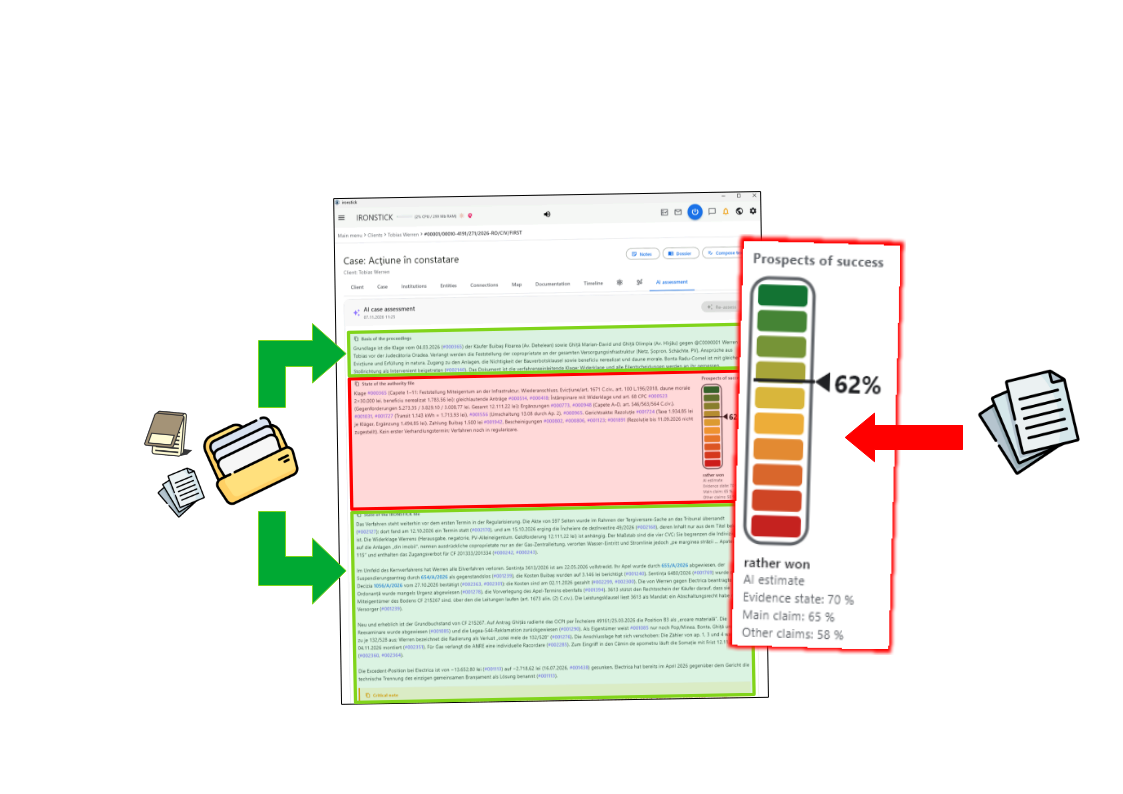
The case assessment reads the case file and shows the prospects of success with the state of the evidence, the main claim and further claims.
Step 0 — set the context
Open the case or name it. Open the case in IRONSTICK: the AI can see which screen and which case you have open. You can also give the case number; the AI finds the case by its number.
The initiating document must be in the file. The forecast needs the document that started the proceedings, for example the statement of claim, stored with its extracted text. It may also lie in another case of the same client, such as the case this one was separated from.
The court must be recorded.IRONSTICK recognises the court or authority only if it is recorded among your institutions and its name appears in the address of the initiating document. If it is missing, the success gauge stays empty.
In the app or by a desktop AI. On the AI assessment tab of the app, only cases with the status Active can be assessed. A desktop AI can assess any case, whatever its status and even when nothing new has arrived.
What you say — step by step
Open case [case number] and give me the state of the last assessment.
The AI loads the case and summarises the saved assessment, including its date.
Make a new assessment of case [case number].
The court file is assembled, the documents are read and the assessment is written in fixed stages; the result appears in the AI assessment tab.
Why are the prospects of success not higher?
You get the points in the court file that weigh against you, each with its evidence number.
Which documents in my file would help but are not yet before the court?
The AI compares your whole file with the court file and names what is still missing there.
Take [#evidence number] into account and assess again.
Your comment is passed on and the assessment is renewed with it.
What happens in the background
Last assessment first. The assessment reader returns the latest assessment of the case. Its first line is the date, the age and whether it was a full assessment or an update, and the AI is told to state when the last assessment was made. Like every tool that reads case content, it is refused until the AI has read the case digest and, after that, the case memory.
One tool, six stages. A desktop AI makes a new assessment only with the dedicated assessment tool. Every call returns only the current stage; the next stage is handed out only after IRONSTICK has checked the current one. No stage can be skipped. If the app is assessing the same case at that moment, the tool refuses until the app has finished.
Stage 1 — initiating document. The AI reads the case PDFs, starting with the oldest, and reports the initiating document as certain, uncertain, or “none found”. Checked: every reported document belongs to this client and was read in full in this session; “none found” is accepted only when every PDF of the case was read in full. A document reported as certain is stored for later assessments.
Gate: court file.IRONSTICK looks for a court or authority recorded among your institutions in the address at the head of the first page of the initiating document, or as the addressee on that page. The court file then consists of the initiating document and every inbound and outbound document of the case whose counterpart is that court or authority — from both parties, without annexes, and without secret or deleted entries.
Stage 2 — state of the court file and forecast. The AI must read every document of the court file in full itself and then hand in the forecast section: a percentage, its band (clearly lost, rather lost, open, rather won, clearly won), the state of the court file, the evidence state, the main claim, the other claims, the change from the previous forecast and the reason. Checked: every court-file document read; the percentage lies inside its band; every line is present; the state of the court file and the reason cite only court-file documents; these lines are written in the system language; a move of more than 10 points from the previous forecast names the new documents that justify it.
No court file — what the AI tells you. Without an initiating document, or without a recognised court or authority in its address, there is no court file. IRONSTICK then tells the AI to inform you at once, in the conversation language and before it continues, that no forecast is made and the success gauge stays empty — naming the reason and, where there is one, the initiating document. The stage then passes with the case alone, and the state of the IRONSTICK file takes the place of the forecast.
Stages 3 and 4 — reading. Stage 3 lists the newest inbound and outbound PDFs of the case and the stored initiating document; stage 4 lists every document of the client's other cases that is linked to this case. Each must be read in full; summaries, titles and search hits are not reading. A result that went to the scratch store counts only when every part of it was read.
Reading state.IRONSTICK keeps a reading ledger per case: how many documents of the case the AI has read in full, and whether it has read the digest and the case memory. These are the same numbers you see, and they come with the answers whenever they change. The AI is told that they are the only valid basis for any statement about what it has read, and that it may call a case or its documents “fully read” only when the numbers show it.
Only the AI's own reading counts.IRONSTICK checks every reading against the conversation record of that desktop AI; what sub-agents or parallel agents read is not counted. Where the conversation record of a connection cannot be seen, the answer says so, and the AI is told to inform you that this check was not possible.
Stage 5 — fact digest. The AI hands in its digest with the headings core facts, documented facts and key quotes, contradictions, gaps and missed deadlines, cross-case references, and the addressees. Checked: every heading is present and filled; the core facts cite documents; every neighbouring case is named; every document cited was read in full.
Stage 6 — writing. Only now does the AI receive the writing rules. The sections are basis, state of the IRONSTICK file, critical note, strengths, risks, cross-case interlocking and, when IRONSTICK found related cases of other clients, those cases as the last section. The state of the IRONSTICK file rests on the digest of every document, and the AI reads any document that matters in full. Checked: the sections and their order; the basis names the initiating document; at most six points each under strengths and risks; every cited document exists in this client's files or in the material, is not secret or deleted and was read in full; the cross-case section names every neighbouring case.
Rejection. When a check fails, the answer starts with REJECTED and a numbered list of errors. Nothing advances and nothing is saved; the AI corrects exactly those points and calls again. A part handed in at the wrong stage is rejected. The AI can start the chain again at stage 1 with fresh material, and a restart of the app also starts it over.
Saving. When stage 6 is accepted, IRONSTICK inserts the forecast of stage 2 after the basis, where there is a court file, and saves the assessment as a new full assessment. It then shows the case on its AI assessment tab, and the AI is told to tell you that the new assessment is saved.
On the AI assessment tab. The state of the court file stands next to the success gauge with the band, the evidence state, the main claim and the other claims. Without a court file, the state of the IRONSTICK file moves to second place and the gauge beside it stays empty.
The assessment in the app. On the tab itself you request an assessment for an active case. The tab asks for consent before it uses an external AI service; the run then continues in the background, even when you switch tabs or screens, through text recognition of new documents, research, writing and the forecast. An existing assessment can be updated within one day after the last full re-assessment, at most three times in a row. When nothing new has arrived since the last assessment, re-assessing opens only after you write a comment of at least three words in the objections field.
Workflow 4 — Creating a nucleu
A nucleu is the binding direction of a case: the core line of argument, the guiding facts and evidence, what must be said and what must never be said.
It exists on two levels — once for a whole matter, applying to every case in it, and once for the single case — and every document the AI writes for the case is subordinate to it.
The best moment to create it is right after a case assessment, while the whole case is still in the AI's working context.
The AI drafts it, IRONSTICK shows you every change, and only your approval stores it as a new version.
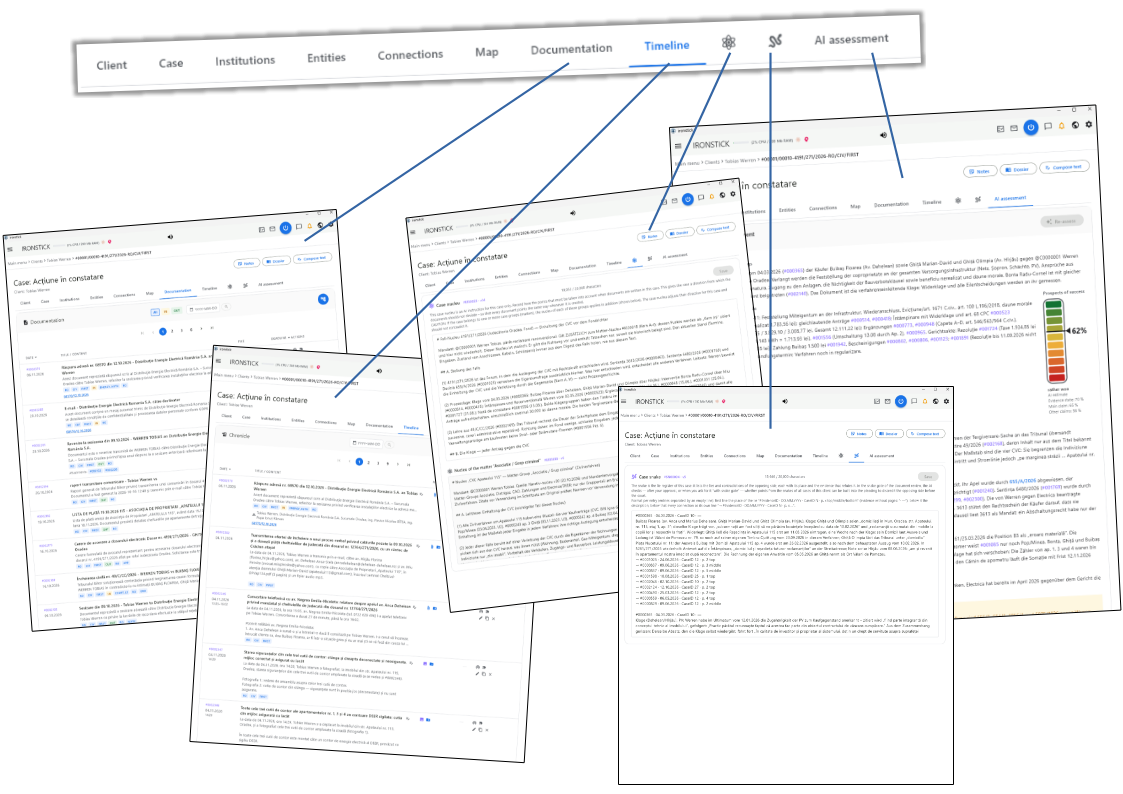
The nucleu in the tab with the atom icon: the AI drafts and proposes, you accept; every accepted change becomes a new version that steers every later pleading.
Step 0 — set the context
Choose the moment. Ask for the nucleu right after a case assessment. The assessment has the AI read the digest, the full texts, the case memory and any existing nucleu and snake; while all of this is still in its working context, the direction can be distilled from the whole case instead of from a few documents.
Choose the level. A matter nucleu belongs to a matter (a group of cases in the case list) and applies to every case in it. A case nucleu applies to one case only and adjusts the direction for that case. A case is governed by its own nucleu and by the nucleu of every matter it belongs to, so the case nucleu should not contradict the matter's line.
Where you find it. On the case screen, the tab with the atom symbol (Case nucleu) holds the editable case nucleu at the top and, below it, read-only, the nucleu of each matter the case belongs to. In the case list, the atom button in the title bar of a matter opens its matter nucleu. Each nucleu carries its identifier, for example #KI00041 · v3; a click copies it, so you can paste it into the chat.
What belongs in it. The direction and nothing else: the guiding thesis, the case's place in the wider dispute, the parties, the opposing side's theses and the answers to them, how future evidence is to be weighed, and the lines that must not be crossed. Facts go in as documented history; the current state of the case is read from the digest each time.
What does not belong in it. Reminders, notes, to-dos, session history, open questions and working thoughts belong in the case memory. The opposing side's statements that the case file contradicts belong in the snake.
Size. At most 20,000 characters per nucleu. The counter next to the text shows the length and turns red above the limit. If the direction needs more room, keep the common line in the matter nucleu and put what is specific to one case into that case's nucleu, with the same limit.
Writing it yourself. You can also type or correct a nucleu directly in the tab or in the matter window and press Save; every save is a new version.
What you say — step by step
Create the nucleu for case [case number] from this assessment.
The AI distils the direction from the case it has just read and opens its proposal in the Case nucleu tab, where you accept or reject it.
Create a nucleu for matter [matter]: the core line that applies to every case in it.
The AI drafts the matter nucleu and shows it in the matter window; once accepted, it applies to every case of the matter and appears read-only in each of them.
How long is each nucleu of case [case number], and what could move to the matter nucleu?
The AI reads the case nucleu and every matter nucleu of the case and measures each against the limit of 20,000 characters.
Update the nucleu of case [case number]: we no longer argue [point].
The AI explains in the chat what it wants to change and why, then proposes only the changed passages; you see them in red bold, and an accepted change becomes the next version.
Read me the current nucleu of case [case number], with the nucleu of each matter.
The AI loads the complete set in its current versions, each with its identifier, for example #KI00041 · v3.
Does this draft contradict the nucleu?
The AI compares the draft point by point with every nucleu that applies to the case and names each deviation; in a pleading, this comparison is the final round of the review chain.
What happens in the background
One write path, with your approval. The AI proposes a nucleu through one dedicated tool: the first version of a case nucleu by the case, the first version of a matter nucleu by the matter (taken from the list of matters), every later change by the nucleu number. Changes inside the text go in as targeted replacements; the AI is told never to retype the whole nucleu and to explain in the chat what it wants to change and why before it proposes.
The review window. For a case nucleu IRONSTICK opens the case on the Case nucleu tab; for a matter nucleu the window appears over the current screen. It shows the whole text with every change in red bold, deletions struck through, and the buttons Reject and Accept. Only one nucleu review is open at a time. If you take longer than about a minute, the AI is told the review is still open and does not send it again; your later approval still stores the version.
Size check. A proposal above 20,000 characters is refused before it reaches you, with the instruction to keep it to the guiding core and to place case-specific direction in the case nucleu or common direction in the matter nucleu.
Current date. Like every dated write, a nucleu proposal needs the current date fetched within the last 30 minutes.
Versions, never overwritten. Each accepted proposal and each save in the tab is stored as a new row with the next version number; the number #KIxxxxx stays the same across all versions, and the highest version is the current one. Unchanged text creates no new version. When a matter is deleted, its nucleu is hidden and its versions are kept.
How the AI reads it. One call with the case returns the whole set: the case nucleu and the nucleu of every matter of the case, each with its header #KIxxxxx · vN, complete, and it names the levels that have none yet. The nucleu also stands at the very top of the case digest, the case briefing and the resume package. An inventory list shows every nucleu without full texts; opening the AI-instructions toolset shows the nucleu inventory of the case you have open.
Read again after every change.IRONSTICK records which version of each nucleu the AI has read. A new version, or the desktop AI condensing its conversation, makes the earlier reading void.
Where it takes effect. The nucleu steers every pleading through Workflow 6 — Writing a pleading. There, the nucleu gate refuses writing, checking and delivering a document of the case until every applicable nucleu — the case nucleu and each matter nucleu — has been read in its current version; the binding document format is likewise served only after every nucleu of the case has been read. At the end of the review chain comes the nucleu round: the document is compared with the nucleu point by point, every deviation is corrected or settled, a contradiction can never be rejected, and one that cannot be removed is marked as a conflict. A conflict stops the work on that document until you have been warned in detail and have decided whether the document is corrected or the deviation stays.
In the case assessment. When an assessment runs, every existing nucleu of the case is part of its context as the binding direction, cited by their identifier.
Workflow 5 — Building the snake
The snake is the internal working register of the opposing side's statements in a case that the evidence in the case file contradicts. Every entry pins the place of the statement — document, date, case and page — and lists every document that refutes it.
You build it in two ways: by targeted research in one or several cases, or in documents you name; or in the middle of any conversation, the moment a contradiction between the opposing side and the case file shows up.
IRONSTICK checks every line against your records, you approve each version, and in every later pleading the snake entries are offered as arguments against the opposing side.
The snake records the opposing side's contradictions with the case file: every line checked against the records, your approval for every version.
Step 0 — set the context
Targeted research. Name the cases, or the documents, the AI is to search for statements of the opposing side that the records refute. A good moment is right after a case assessment or a complete reading of the case, while the files are still in the AI's working context. Ask it to cast the net wide; the snake holds only what the documents prove.
During any conversation. When a contradiction between the opposing side and the case file surfaces while you work on something else, tell the AI to add it to the snake if it is not there yet. It checks the current snake first and extends an existing entry rather than registering the point twice.
One snake per case. A snake belongs to a single case. A matter has no snake of its own; it shows the snakes of all its cases.
Where you find it. On the case screen, the tab with the snake symbol right of the nucleu tab (Case snake) holds the snake of that case with its identifier, for example #SN00004 · v2, and a character counter. In the case list, the snake button in the title bar of a matter opens Snakes of the matter: the snakes of all its cases in the order of the list; clicking a case opens it on the Case snake tab.
Size. At most 20,000 characters per case snake. The counter turns red above the limit. Keep each entry to the place, a short description and its reference lines.
What belongs in it. Only statements of the opposing side that the evidence in the case file contradicts. Suspicions, strategy and reminders do not belong in it; reminders go into the case memory, and the opposing side's contradictions go only into the snake, never into the memory.
The entry format. Entries are separated by one empty line. The first line is the place of the statement; then the description; then every connected document on its own line, starting with an arrow:
#0004417 · 12.10.2026 · CaseID 19 · p. 2 top Statement of defence on appeal, Opponent B: the courts have already decided ownership of the installations with final effect. Against this, the case file: both judgments expressly leave ownership to the main proceedings, and Opponent B said the same at the earlier hearing. → #0003304 · 18.07.2026 · CaseID 19 · p. 5 middle → #0000586 · 25.04.2026 · CaseID 8 · p. 9 top → #0001127 · 24.06.2026 · CaseID 8 · p. 15 bottom
Each reference line reads: evidence number with seven digits · the document date as IRONSTICK records it (DD.MM.YYYY) · the CaseID of that document · the page and the position on it (top, middle or bottom, in any of the system languages), or a dash for evidence without pages. When a contradiction is spread over several documents, every one of them gets its own reference line: the statement, the counter-statement and every piece of evidence in between. You can also type or correct entries yourself in the tab and press Save; every save is a new version.
What you say — step by step
Build the snake of case [case number] from the complete file.
The AI reads the case and every document that refutes the opposing side, then proposes the snake in the Case snake tab, with every line checked against your records.
Search documents [evidence numbers] for statements of the opposing side that the case file contradicts, and add them to the snake of case [case number].
The AI reads exactly these documents in full and enters only the statements that your records refute, each with its refuting documents.
Build the snakes of all cases in matter [matter]. Cast the net wide.
The AI works case by case, one snake per case; the matter window then shows all of them in the order of the case list.
Is this contradiction already in the snake of case [case number]?
The AI reads the current snake and tells you whether the point is already registered, and in which entry.
Add this contradiction of the opposing side to the snake if it is not there yet.
The AI reads the current snake, extends the existing entry or writes a new one with every refuting document as its own line, and shows you the change to accept.
Which snakes do we have for client [client]?
The AI lists every snake of the client's cases with its identifier, version and number of entries.
What happens in the background
Read first. If the case already has a snake, a change is accepted only after the AI has read its current version in this session, and again after the desktop AI has condensed its conversation. A case without a snake takes its first entries directly. The AI is told to check that the point is not already registered and to extend the existing entry instead of entering it twice.
Write only from what was read. Once the AI has opened a document of the opposing party or of an authority in the case, a change to the snake is refused until that document has been read completely.
The whole text, every time. The AI proposes the complete snake including its addition; partial writes (appending or targeted replacements) are refused, so every proposal is made with the whole register in view. A proposal above 20,000 characters is refused before it reaches you.
Every line checked against the records. Before the proposal is shown, IRONSTICK checks each entry: the first line in the required form, a description, at least one reference line, no description after the reference lines; and for every reference line that the evidence exists, belongs to the stated CaseID, carries exactly that document date, belongs to the same client as the case, and that the page lies within the stored PDF. On any error nothing is proposed; the AI receives the list of errors, entry by entry, and corrects them.
The review window.IRONSTICK opens the case on the Case snake tab and shows the whole text with every change in red bold, with the buttons Reject and Accept. If you take longer than about a minute, the AI is told the review is still open and does not send it again; your later approval still stores the version.
Versions, never overwritten. Each accepted proposal and each save in the tab becomes a new version under the same number #SNxxxxx; unchanged text creates no new version.
How the AI reads it. The AI can read the snake of one case, the snakes of all cases of a matter in the order of the case list, the snakes of all cases of a client, or one snake by its number — each block headed #SNxxxxx · vN with its case. An inventory list shows every snake with its number of entries, without full texts. The resume package of a case and the case assessment carry the snake as well.
Where it takes effect. The snake works through the snake gate in Workflow 6 — Writing a pleading. When snakes exist for the case — its own snake or those of the other cases of its matters — the AI asks you the fixed question Do you want the Snake Gate?, unless you already said with snake gate, or waived the round, in your own words. After your yes comes the snake round of the review chain, before the final nucleu round: the AI reads the snake of the case and the snakes of the other cases of its matters completely, reads the draft again, and settles every snake entry in a result file as built in (with the place in the document), rejected or not relevant, each with a reason. An entry is rejected if it, or its wording, could be turned against the client. Already used or already known to the court is not accepted as a reason: the entries are arguments to be repeated in every document where they fit. The round is accepted only when every entry is settled, the snakes and the draft were read after the order, and the draft was really changed wherever an entry was built in.
Workflow 6 — Writing a pleading
This workflow takes you from a request in plain words to a submission-ready template in the word processor: a pleading, a request to a court or authority, or a letter.
The AI reads the case before it writes, builds the document in its encrypted scratch store, has every fact, quote, norm and party checked against your records, works through a fixed review chain, and asks you at each decision point.
Use it whenever something is to leave your office in writing. What leaves IRONSTICK is always a template for you to review, sign and send yourself.
From your order to the template in the word processor: the AI reads, drafts and verifies, guided by checks up to the tick mark; you decide at every step.
Step 0 — set the context
Name the case. For the built-in chat, open the case and choose Compose text › With AI help: the chat opens with that case; from a chronicle entry the document is already named. With a desktop AI, give the case number in your first message — the AI can also ask IRONSTICK which screen and case you have open.
The case needs its country. Law, language and date of the document come from the jurisdiction set in the case. If no jurisdiction is set, the document format is refused with a request to set it first.
Use the strongest model of your desktop AI. For drafting, the AI is told to recommend the strongest model tier before it starts and a lighter one again after delivery. The desktop AI app switches only by your hand; the built-in chat switches by itself.
Bundle your first message. Case, kind of document, what you want to achieve, the evidence numbers it rests on, tone and length, and a previous filing whose addressing worked. Documents ground a pleading; adjectives do not.
Say up front what you want from the review rounds. Words such as with snake gate or without snake and nucleu in your own message are recognised by IRONSTICK; the AI then does not ask about those rounds for this document. Pasted text does not count as your words.
Draft the reply to the statement of defence #0004127 in case [case number], base it on #0003310 and #0003318, short and factual, addressed like the appeal of 12 May, with snake gate.
What you say — step by step
Write a reply to [#evidence number] in case [case number]. Goal: [goal].
The AI reads the case, the nucleu of the matter and of the case, and the document you answer, then drafts in its scratch store.
Use [#evidence numbers] as evidence. Tone: [factual / firm].
Your instructions are taken into the draft; every cited document is read in full.
No corrections — continue.
The review chain runs: read again, compared with your earlier filings, attacked from the opposing side, snake round, nucleu check.
Change point [number]: [your correction].
The draft is corrected and checked again before it goes on.
Deliver it.
The document appears in the download window; take it into the word processor, sign it and send it yourself.
What happens in the background
Jurisdiction and language. The AI determines the jurisdiction from the case before any legal work. It talks to you in the IRONSTICK system language; the document is written in the official language of the case's country, and the format carries the case number and today's date.
Read the case before writing. Tools that write on a case are refused until the AI has read the case digest; a pleading also needs the newest documents of the case read in full. The refusal lists what is still unread.
Start gate for the format. The binding document format (by kind of document: pleading or letter, represented by counsel or self-represented) is served only after the AI has read the complete digest, every outgoing document of the client in that case in full, the document the pleading answers in full, the case memory and every nucleu of the case. Anything addressed to a court is a pleading, never a letter. For a pleading the format also brings a profile of the court from your files.
Your original requests first. When the pleading answers a document, the AI must first list in the chat every request of the client's original application in the case, quoted with its evidence number, ask you whether it is still correct, and end its turn. The format is served only after your answer. If the document itself opens the proceedings, the AI says so in one sentence and asks nothing.
Nucleu first. Writing, checking and delivering are refused until every current nucleu of the case — the case nucleu and the nucleu of each matter it belongs to — has been read in its current version, again after each new version and after the desktop AI has condensed its conversation.
Write only from what was read. Once the AI has opened a document of the opposing party or of an authority in the case, work on a document of that case is refused until that document has been read completely. A draft that cites documents the AI has not read in full is locked against any change until they are read; deleting the cited passage does not lift the lock.
The deterministic pleading check. It runs on the current state of the file, without an AI, and checks: every evidence reference and stamp, and that each cited or annexed document was read for this document; every statute citation against the verified legal library; every verbatim quote against the case full texts, retrieved documents and the library; case numbers; amounts, which must match the recorded form exactly; names of client, persons and institutions letter for letter, diacritics included; IBANs and, as a country-specific check, Romanian personal numbers (CNP) by checksum and against the records; that every person or company named was read together with its connections; and the binding format, including the annex list. Each finding is marked VERIFIED, UNVERIFIED or CONTRADICTED.
Read before you write, not after. A reading done after the last change of the draft does not count for that verification: the AI must read first, then work it into the text, then verify again.
Quotes. A quote found in no source blocks delivery; rewording it or dropping the quotation marks keeps it blocked, and the only fix is the exact wording of the source. A quote that disappears from the text is reported to you at delivery.
Annexes. Every annex entry must carry the evidence reference, the filing stamp fetched from IRONSTICK, and the page placeholder. An annex with no stored file and no media is flagged for review. An annex that is an outgoing document or a filing of the other side is flagged with the instruction to annex the original document instead, if the filing was attached only for one page in it; this flag is a review note, not a block.
Open findings go back to the AI. Every finding of the check is returned to the AI to fix, and the check runs again on the new state. The checks are counted per document, across version numbers: if findings are still open after the fifth check, IRONSTICK hands the decision to you with a system message, and the AI presents the open points to you, so that you decide how to proceed.
Summary first. After the first OK the review chain starts with a summary of the document for you — addressee and procedure, requests, structure, key facts with their evidence, statutes cited. The AI waits for your answer; corrections are worked in before the chain continues.
The review chain. Each step is reported back to the pleading check and checked before the next order comes: read the whole file again; the client's own earlier filings on the documents cited, so the client does not contradict their own earlier filings; a reply table covering every passage of the answered document; an attack as the opposing party, written to a separate file and settled point by point in the draft; an evaluation, settled the same way. A file counts as read only when every line was read since the order; a round with no adopted finding in which most findings are dismissed as already done is refused.
Fixed questions. Then come up to two fixed questions — the nucleu question when the case has a nucleu, the snake question when snakes exist for it. The AI asks them word for word, one at a time, and accepts only a yes or a no from your own message. A new pleading without an earlier version gets the nucleu round without the question. Your answer is remembered for all versions of the document.
Snake round. After your yes, the AI reads the snakes of the case and its matters and records, for every snake entry, whether it was built in, rejected or not relevant, each with a reason; an entry is rejected if it could be turned against the client.
Nucleu round. The document is compared with the nucleu point by point. A contradiction cannot be rejected: it is corrected or marked as a conflict. A conflict stops the work on that document; the AI must warn you in detail and continue only after your decision to correct the document or to keep the deviation.
Your corrections stay in. Your own messages are recorded per document. A correction of yours that was worked in and later removed again blocks the chain and the delivery. A passage built on your own words cannot be deleted until the AI has asked you.
A change restarts the chain. Every edit voids the last check. A change after the completed chain starts the whole chain again.
One delivery question. At the end the AI names in at most three lines what the chain changed and asks once whether it may deliver. Delivery is refused without a fresh positive check for exactly this state of the file, and without your yes.
Open court decisions. If court decisions are still waiting for assessment, the AI asks you whether to assess them now, so their results flow into the document, or later.
Delivery into the word processor. The file goes only through the IRONSTICK download dialog: save it, or hand the Markdown straight into the word processor. There you edit, add the letterhead, exclude pages, place your signature and export a PDF or DOCX. An unchanged file already delivered is repeated only on request, without a new version number.
After delivery. The AI asks whether the document is done or needs corrections. Until you answer, the AI can only read. Your correction is attached to the delivered version, which becomes void, and the next version is created for the correction. Printing in the word processor, or sending the PDF for the e-mail check, closes the document.
The e-mail package. A court e-mail is prepared only for a finished PDF: you drag the signed PDF into the chat, the AI checks it against the last version, and only a matching PDF opens the e-mail format — subject, body with sender, ID and file number, package list, and the recipient, as copy boxes. Oversized filings are split into parts of about ten megabytes on the mail-dispatch screen, each with its cover mail. IRONSTICK sends nothing; you send from your own mail program.
Workflow 7 — OSINT: researching a person or company
Use this workflow when you want to know who a party is: an opponent, a witness, a company behind an address, the people around a firm.
The AI runs a fixed research procedure through your own records and the open internet, opens and reads the sources, and enters what it can verify as proposals into the Data Consistency Monitor.
Nothing becomes part of your records until you accept it there. The research needs no case: a party can be researched on its own.
One party at a time: search, read, verify, propose — and you decide in the Data Consistency Monitor.
Step 0 — set the context
Have the party's key details ready. The OSINT check needs the full name, the country and whether it is a natural person or a company; city and district as far as known. The country decides the language of the search terms. City, district and country are also mandatory for every new party the AI later proposes.
No case required. The OSINT check takes no case number. If you also want the party linked to a case, say so — the link is then a separate proposal.
An existing record helps. If the party is already in IRONSTICK, name it or its number (for example @E0001234). The AI reads the record first; the OSINT check also lists existing entries with the same name by itself.
Several names? If you have a list (a friends list, an attendee list, an imprint) captured as a document, ask the AI to check the list against everyone in IRONSTICK first, then research only the names that matter.
Without the AI conversation. In the person analysis of a person, the Web research button opens a guided research of your own: candidate links, page summaries, a preview of the analysis fields and saving into the person's analysis.
What you say — step by step
Research [full name], [city], [country] — natural person.
Your own records are checked first; then the sources on the internet are opened and read.
Research the company [name], [city], [country].
The same procedure for a company, including its tax number and registered office.
Is there a connection between [person] and [person]?
Existing relations are shown; new ones are searched for in your records and the sources.
Show me the source for [finding].
You get the link or the evidence number behind the finding.
Enter the verified findings as proposals.
The findings land in the Data Consistency Monitor; nothing is stored until you accept it there.
What happens in the background
The OSINT check. The AI starts the check with name, city, district, country and whether the party is a natural or legal person, and the same procedure runs every time. Internally, the name is searched in full text across the whole database (all clients); per case, the 10 newest evidence entries come back with the paragraph of every find, plus how many more exist. On the web, a fixed list of searches runs: CV, Facebook, LinkedIn, Instagram, district, city, scandal, news, asset and interest declarations (where published), tax, companies; for a company, the commercial register and insolvency replace the personal searches. The search terms are in the language of the party's country and are run on three search engines. Links and titles come back with duplicates removed. The search runs as a background job; while it is not finished, the AI repeats the identical call to keep waiting. The check itself writes nothing.
Existing entries first. If IRONSTICK already holds persons, companies or institutions matching the name, the first answer lists them in full, best match first. The AI names the entry that is this party, or "none". A reported entry receives every finding; for a desktop AI at the bridge, a proposal to create the same party anew is then refused.
A prepared profile. The AI checks it source by source and sorts out namesakes. Links whose search result shows the full name are the matching links, sorted best first; the others are optional; bare home pages are dropped. The AI's task is to read every evidence find, open every matching link and use only what the opened page itself states — never a title alone.
OSINT gate — one party at a time. For a desktop AI at the bridge, the result ends with a checklist, and the next OSINT check for another party is refused until it is worked through:
the first 10 matching links opened (at least 20 % of them if that is more);
every listed evidence entry read — a result diverted to the scratch store counts only when read to its end, a search inside it never counts;
for a person, every opened page that names the person and landed in the scratch store read at its finds;
then either a proposal or the statement that nothing usable was found;
for a person, also every connection to other persons proposed, or the statement that there is none.
A page that names the person's full name together with the city or district cannot be closed as "nothing usable" unless the AI lists it as already recorded or as a namesake. The refusal names exactly what is missing. Readings are booked per session, so one session's reading never counts for another.
New person only after a complete OSINT check. For a desktop AI at the bridge, a proposal for a new natural person is refused until the OSINT check for that name has been worked through completely. City, district and country are mandatory for every new party and every address entry. A new party otherwise needs at least two detail fields besides its name. A natural person's address is checked against the addresses of institutions — an employer's address is refused as a home address — and a new company needs its tax number, associations excepted.
Opened, not snippets. Web pages are opened and read with the IRONSTICK page tool; search results are only pointers. Large pages are kept complete in the encrypted scratch store and read from there. Search forms and data tables that fill only after a filter can be queried directly. A page opened in the same session is served again from a copy for 30 minutes. A scanned document that takes longer to process is reported as not ready yet; the processing continues and the next call returns the text.
Bot checks and logins go to you. When a website shows a bot check or blocks automated access, IRONSTICK opens the page in its own browser window and the AI asks you to complete the check there. Afterwards the AI reads the page in that window, opens further pages of the same website and downloads its files into the encrypted scratch store; nothing enters a case until you capture it. For another website the AI goes back to the page tool; when it has finished, it reports the browser work as done, and the window asks you whether to close it or keep it open.
Hidden instructions blanked out. Text from opened web pages and from the browser window passes a rule-based inspection; passages that address an AI, imitate chat or IRONSTICK control text or hide text in invisible characters are overwritten with asterisks, and a notice stands above the content.
Name lists in one pass. A list comparison checks a captured list deterministically against every person and company in IRONSTICK — accents folded, word order ignored, tolerant of OCR errors. Hits are graded exact, reordered, variant or single word; single-word hits are always ambiguous and must be checked.
Proposals instead of writes. Verified facts go as proposals into the Data Consistency Monitor: master data, the person analysis, connections and duplicates. For the person analysis the AI must read the person first; a field that already holds content is changed only when the AI passes that content word for word. An accepted analysis field goes into the person's latest analysis. A new person receives its number only after you accept it, so connections to it need a second acceptance.
Never into the AI memory. OSINT findings and progress belong to the party, not to the memory. While an OSINT check of a desktop AI is open, every attempt to store a memory entry is refused with the instruction to enter the facts at the party instead.
The person web search in the app. The Web research button in the person analysis runs four steps: a web search with name variants collects candidate links (an additional AI web search runs only with your consent); you remove unwanted hits; the remaining pages are loaded and summarised by an external AI; you tick the sources, and the AI condenses them into the analysis fields as an editable preview. Saving writes the fields into the person's analysis that is not tied to a case, marked as unconfirmed. The external AI is used only after you have agreed in a consent dialog; if you decline, nothing is sent.
Workflow 8 — Legal research: statutes from the library first
Use this workflow whenever a statute, a code article or a regulation matters: to answer a legal question, to check a citation or to ground a pleading.
The AI reads norms from your own legal library, word for word, and goes to the internet only when the library has nothing on that norm.
A statute found online is opened, read, cited with its URL and reported back, so that after your approval it enters the library.
The library is what the pleading check holds every cited article against.
Library first, web only on a miss, and every web source back into the library with your approval.
Step 0 — set the context
Open the case or name it. The law to apply comes from the case. The AI reads the jurisdiction recorded in the case before substantive legal work.
If no jurisdiction is named. The library search then uses the jurisdiction of the case the AI last worked on in the session and says so; without a known case it searches all jurisdictions and asks the AI to check the jurisdiction of every hit.
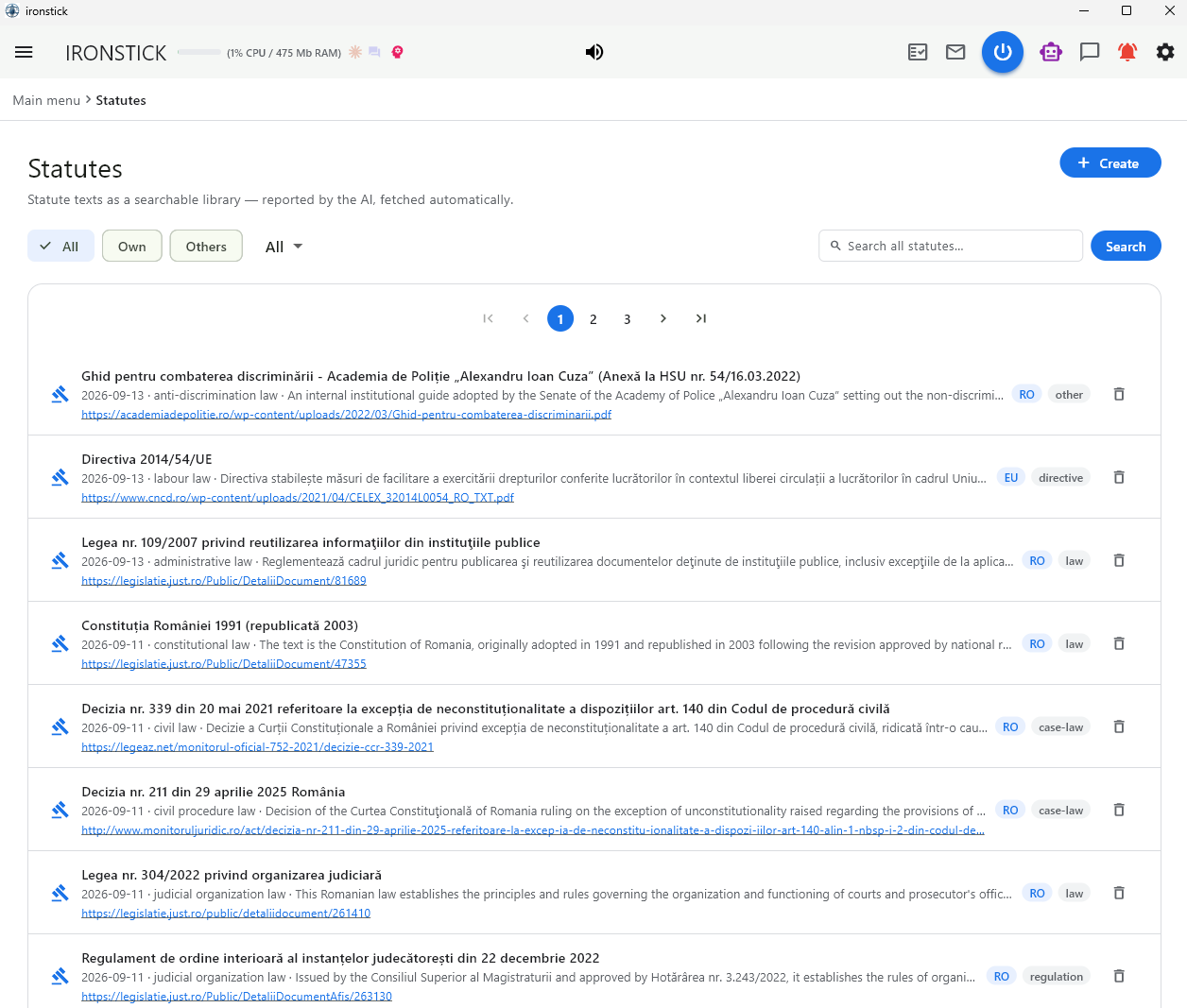
See what the library holds. The Statutes screen lists every statute of the library with title, jurisdiction, area, source and status, has its own full-text search and an add button for a link or a PDF or Markdown file. Ask the AI "which statutes does the library hold for [country]?" to get the same overview in the conversation.
Ask for the reading you need. A quick overview, the verbatim text of one article, or a complete reading of a statute. Say which.
What you say — step by step
What does art. [number] of [statute] say? Quote it.
The article is read word for word from your legal library and quoted with its source.
Is [question] regulated in [statute]? Give me the articles.
The library is searched; you get the relevant articles with their exact wording.
Check the norms cited in my draft against the library.
Every cited article is compared with the full text in the library.
[statute] is not in the library — look it up on the official portal.
The web is opened only for a norm the library does not hold; the page is read, cited with its link and proposed for your library.
What happens in the background
The library search. It covers all statute files of the library in two ways: by designation ("Civil Code", "Regulation (EU) 2016/679"), matched against title and description and ranked first, or by passage, a fuzzy search in which about 60 % of the words suffice. Each hit names the internal registration number (L-number), the file, short excerpts with their exact character positions and a ready-made call to fetch the wording around them.
Reading verbatim. The article reader returns one article by L-number and article number; the phrase search returns a character range or every place where a phrase occurs, with its surrounding wording. Both register exactly what they returned as read. The statute reader returns a whole statute; a statute larger than the connector limit goes complete into the encrypted work area; what counts as read is what the AI retrieves from it with the article reader.
Legal library first. A web search or a page request that looks like a statute lookup — article or paragraph numbers, code names, law numbers, statute portals — is refused until the AI has searched the library for that norm. If the library has hits, the web stays closed for that norm and the AI is told to quote from the library. Only when the library reports no match is the web released for that norm, for 15 minutes, including the statute-portal links that search returns. Hits that do not carry the searched act number or designation in their title, or that do not contain the searched article number, do not count as "the library has it" — a mention of a by-law inside its parent law is such a false hit. The gate applies to the AI chat and to every desktop AI.
Opened, not snippets. A page used as a source is opened and read with the IRONSTICK page tool; search results are only pointers. Every internet source is cited with its URL. Statute wording is quoted from the library file once the source is there.
Report statute sources. After a statute-related web search, or after the AI opened a page of a statute portal, every further tool answer starts with the reminder to report the source, for up to 15 minutes. A portal link that merely appears in an unrelated search result only gets a note.
Opened by the AI itself. A source report is accepted only when the same AI session opened exactly that page with the page tool within the last 24 hours. Otherwise the report is refused with the instruction to open the page and check that it really holds the statute text — not an error page, a login page, a search result or an overview. Like every dated write, the report needs the current date fetched within the last 30 minutes.
Your consent. Reported sources collect in one dialog, each with a tick box. Ticked sources are fetched by a background process, converted, checked and stored in the library; unticked ones are declined. Closing the dialog leaves them collected; it returns with the next report. A link already in the library is answered as existing; a different source for an act the library already holds becomes a request to replace the source, under the same L-number.
No statute portals in the browser window. The IRONSTICK browser window, where you complete bot checks and logins for other websites, refuses statute portals: nothing is opened, read or downloaded there. A statute portal that blocks the page tool is not handed over to that window.
Currency of the library. Linked sources are re-checked against their source about every 14 days; the AI can also re-check a single statute at once. If a statute differs from its source, the AI looks up the current version online. Uploaded files without a source are marked as such.
Citations in a pleading. The pleading check holds every cited article against the reading log of the library tools. An article that exists in the library but was not read there before the draft was last changed is a blocking finding, with the instruction to read it verbatim with the article reader and work it into the text. A norm not in the library is a blocking finding until its source is reported and integrated. A reading counts when it came after the last change of the library text and before the last change of the draft.
Located is not read. Finding an article number in a statute file, or naming it in an overview, is not a verbatim reading. For a pleading, each cited article is read with the article reader, and the AI checks that the wording actually supports its sentence.
Reading a whole statute. When a complete code lies in the scratch store and the AI reads it there part by part, it has the full text in its conversation. For the pleading check, an article still counts as read only when it came through the article reader or the phrase search, or with a statute small enough to be returned directly.
Working with the AI — your assistant in the file
In principle, a chat with an AI that is connected to IRONSTICK through the bridge is an enormously powerful tool. Think of it as a paralegal or a fellow lawyer. Through the bridge, the AI can not only search documents, individual text passages or pieces of evidence — it can also view stored images, view and check PDF files on request, start new OCR scans and much more.
When you work with the AI, work with it as you would with a paralegal or a lawyer. Simply give clear instructions on exactly what you want. The AI makes the necessary queries in the background through the bridge, directly in IRONSTICK — that is, in your files.
As a rule: without your consent, the AI can do little more in IRONSTICK than read. Changes to master data, chronicle, calendar, memory, full texts and the legal library take effect only after you approve them: either you get a form or dialog in IRONSTICK for it, or the AI's change request appears in the Data Consistency Monitor. Without such a dialog, the AI writes only to its own work areas — the encrypted scratch store, the daily log at your request, and its own case assessment after the deterministic checks. Tags and messages in the office chat need your confirmation in the chat.
Full transparency: every desktop AI app shows its tool calls — you can see at any time which information the AI has retrieved from IRONSTICK.
Be strict in your questions and instructions, and tell the AI where and how to research. You do not need to name the search tool — the AI knows it itself — but tell it clearly to fetch the information from IRONSTICK: in client XY, in case XY, in evidence XY. You can simply name clients by their name — the AI resolves the client ID itself — or copy the client number (@C0000000) from IRONSTICK and give it to the AI. The same works, for example, with an evidence number (#0000000).
The AI covers what deterministic program logic cannot, or only with extreme effort — understanding and writing natural language. Everything else — access to your files, the selection of the court file, the checks against your records, the rule that your records change only with your approval — is done by IRONSTICK itself, deterministically. The AI never becomes the source of the facts; IRONSTICK is. This is what sets the IRONSTICK approach so fundamentally apart from the conventional use of AI.
For you as the user, however, IRONSTICK presents itself in the familiar form — as the graphical interface or as a dialog.